
iOS and iPadOS
iPhone and iPad
Take your conversations, meetings and files with you on your phone or tablet.
Download on the App Store
Opens App Store. Publisher: Skytale AS.
Skytale on your device
Choose the app for your device. Sign in using the access provided by your organisation.
Skytale 2.0 is here. The desktop client for Windows and Mac is now available to download.
Take your conversations, meetings and files with you on your phone or tablet.
Opens App Store. Publisher: Skytale AS.
Stay in touch with colleagues and partners, even when you are on the move.
Opens Google Play. Publisher: Skytale AS.
Skytale on your computer. Choose the version for your operating system.
You need a user account. Your organisation's administrator provides access. You cannot register yourself in the app.
How to get startedInstalling on your computer
Mac and Windows ask a few security questions when you first install an app downloaded from the internet. This is normal. Here is what to select.
There are two versions for Mac. Click the Apple menu in the top left corner and choose About This Mac.
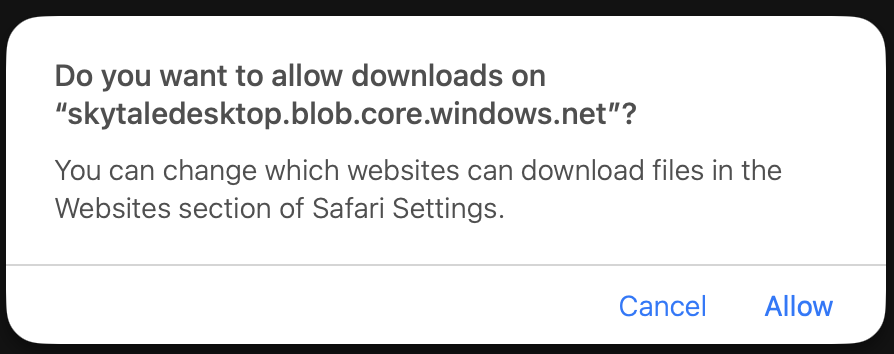
Safari asks whether to allow downloads from skytaledesktop.blob.core.windows.net. This is where Skytale stores its installation files. Click Allow. Chrome and Edge do not ask this question.
Open the Skytale-…dmg file in Downloads. Drag the Skytale icon to Applications.
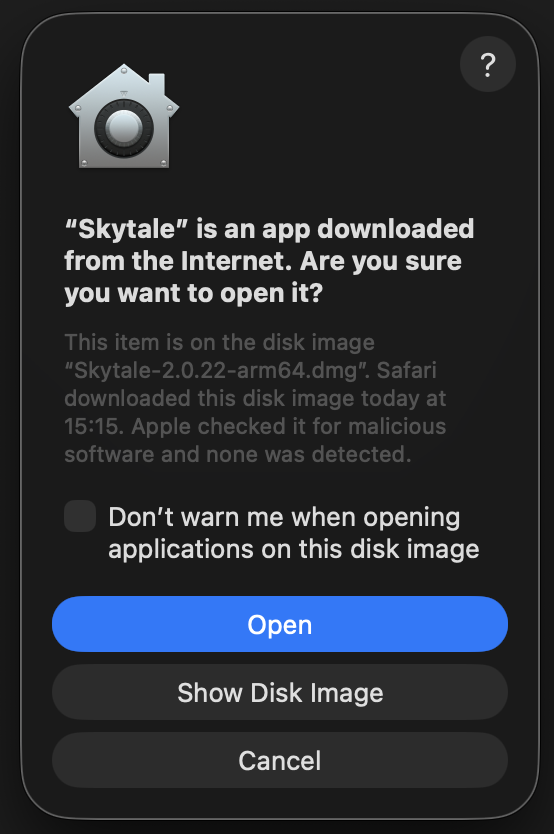
Double-click Skytale in Applications. macOS tells you that Skytale was downloaded from the internet and asks whether you want to open it. Apple has already checked the app. Click Open. You are only asked the first time.
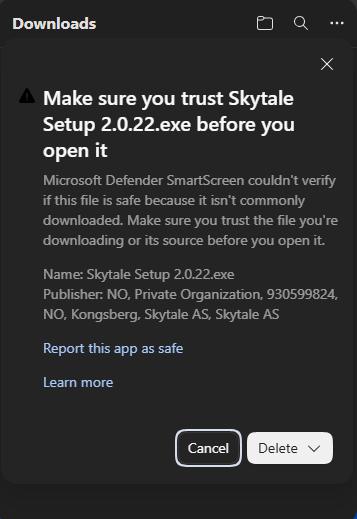
Skytale is new and the file has not yet been downloaded by many people. Windows therefore asks you to confirm that you trust it before opening it. The screenshots show Edge.
Click Windows in the desktop card above. The download list says Skytale Setup isn't commonly downloaded and asks you to make sure you trust the file.
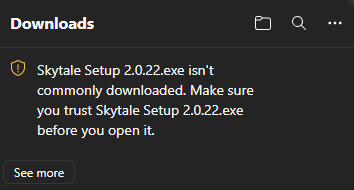
Hover over the message and click the three dots (More actions). Select Keep.
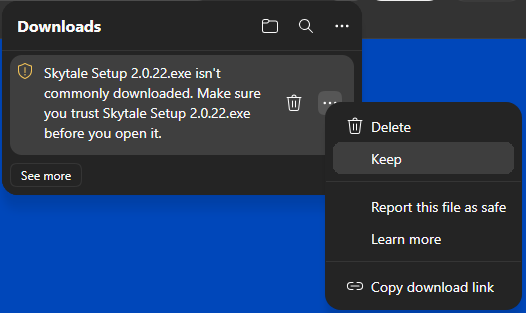
A new window asks you to make sure you trust the file. Publisher shows Skytale AS, company registration number 930 599 824. Click the arrow next to Delete and select Keep anyway.
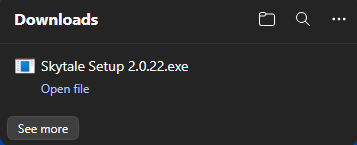
Click Open file and follow the instructions in the installer.
Contact support@skytale.no if you need help or your organisation's IT team manages your computer.
First sign-in
Ask your administrator for a user account and the information you need to sign in.
Use the links above. For Mac and Windows, the installation guide shows you each step. If your employer manages your device, follow your organisation's installation procedure.
Follow your administrator's instructions. If you cannot access a group or channel, contact your IT support.
Questions and answers
Current system requirements are listed under compatibility in the App Store and app information in Google Play. The store also shows whether the app is available for your device. For Windows and Mac, support can help with system requirements and installation.
Downloading the app does not create a user account. Check with your organisation's administrator that you have been given access, and follow the sign-in instructions you received. If you need more help, contact support@skytale.no.
Ask IT or your organisation's Skytale administrator how to install the app. Installation and updates may be centrally controlled on a managed device.
The mobile app is updated through the App Store or Google Play. If your organisation manages the app, follow IT's procedures. For desktop, ask your administrator or support for guidance. Read more on the page for releases and updates.
Book a demo, and we will show you how Skytale can be used in your organisation. You can also read more about the product before getting in touch.
We can help with installation and use.